OGG Theora Converter

John Gruber today opines that there is no GUI interface for the command-line tool for converting Quicktime movies into the OGG Theora format — a very handy thing to be able to do if you want to serve video to Firefox-type browsers using HTML 5’s <video> and <audio> tags.

Since this is something I do a lot — wrap command-line tools in Automator wrappers, that is — I thought I’d whip up a GUI method for doing this. So here it is.

The OGG Theora converter

It’s a Finder workflow, so download it, unstuff it and put it in:
~/Library/Workflows/Applications/Finder

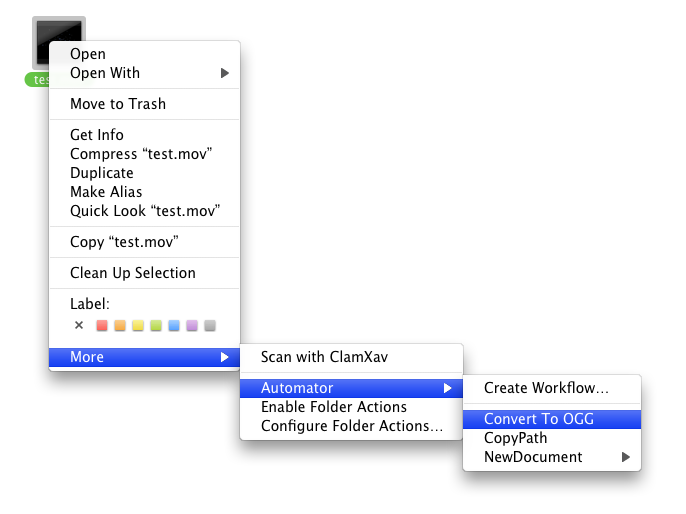
Placing the workflow there will add the item to the Finder’s right-click contextual menu. To use the workflow, simply right-click a video you want to convert, navigate to More->Automator and choose “Convert To OGG” from the menu.

Ogg Converter Workflow

Ogg Converter Workflow

While this crunches you’ll see a badge in your menubar:

Menubar Progress

Progress

Wait a few minutes and you’ll see the OGG version appear right alongside your original movie.
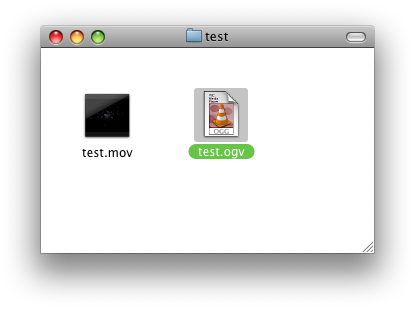
complete

Completed OGG File

And remember, you must first install the OGG Theora converter tool, ffmpeg2theora, for all this to work.

I’ve made a droplet-style version of this as well. Place this version anywhere — your Desktop, the Applications folder, your Dock — and when you want to convert a video, simply drag the video onto the droplet.

Enjoy!

UPDATE:
Folks, for those of you having trouble installing the workflow version, here’s a tip, as mentioned in the comments: Double-clicking the unstuffed workflow will open it in Automator. From here you can choose File->Save As Plug-in…

Installing Workflows the Easy Way

Installing Workflows the Easy Way

Make sure it’s a Plug-in for: Finder, and hit the Save button. It should now show up as an option in the Finder’s contextual menu.

And remember, there is a Droplet Version as well whose installation is drag-and-drop. To anywhere!

Hope that helps!

12 Comments

  1. gargantuan
    Posted July 3, 2009 at 2:07 PM | Permalink

    Awesome. I have habit of messing things up whenever I go near the command-line. This worked a treat!

  2. Posted July 3, 2009 at 2:14 PM | Permalink

    Very nice. Thanks for posting this, I prefer a droplet to tinkering with command line.

  3. Posted July 3, 2009 at 2:52 PM | Permalink

    Great tool.

    “put it in:
    ~/Library/Workflows/Applications/Finder”

    Except that there is no such folder on my computer, and creating it does not add the item to the Finder’s right-click contextual menu.

  4. Posted July 3, 2009 at 2:56 PM | Permalink

    Peter,

    Just to be clear, the tilde character (~) at the beginning of that file path means “your home account.” So, the path would be:
    your_home_account/Library/Workflows/Applications/Finder

    If that’s not there, something awful strange is going on. Or you’re using a pre-Automator OS.

    Let me know if that solves your problem.

    -systemsboy

    P.S. There’s been a lot of snark in my comments section lately, and frankly I’m tired of it. The fact that you are having trouble with this freely provided tool doesn’t entitle you to come here — or anywhere else for that matter — and speak derisively in the comments. If you need help, feel free to ask. But do it politely from now on. Thanks.

  5. voidref
    Posted July 3, 2009 at 4:07 PM | Permalink

    I think that if you have never installed a workflow it will not be there. I have 10.5 and there is no Workflow in either the home dir or the system Library dir.

    Thanks for the tool!

    A GUI way to install is to double click it, make sure it is highlighted at the right, then in the Automator File Menu choose ‘Save as Plugin…’, then type a name, I chose ‘Theoarize’.

    Taa Daa!

    HTH!

  6. voidref
    Posted July 3, 2009 at 4:08 PM | Permalink

    Doh, typo: Theoraize

  7. Posted July 3, 2009 at 4:09 PM | Permalink

    Thanks, voidref. Great tip! I didn’t realize you could do that.

    -systemsboy

  8. Posted July 3, 2009 at 4:11 PM | Permalink

    Also, Peter, if the workflow version doesn’t work, try the droplet version.

    -systemsboy

  9. Posted July 3, 2009 at 4:53 PM | Permalink

    An easier way to explain it may be to just open the workflow itself and then go to File > Save as PlugIn.. and give it a name, Automator then adds it to the right folder for you.

  10. Steve Kellman
    Posted July 3, 2009 at 5:05 PM | Permalink

    In my Tiger system, the Workflows folder is at the root level at Library / Application Support / Apple / Automator /. There wasn’t a Finder folder in Workflow’s Applications folder so I added one and put the workflow there. But restarting the Finder did not add it as a Services menu item. Restarting the Finder after adding the folders and workflow to my home directory Library folder didn’t put it in the Services menu either. Also, when I ran the workflow, Automator noted that it was created in a more recent version of Automator and might not work correctly. Finally, the droplet didn’t appear to work. So I’m guessing it’s Leopard only.

  11. Steve Kellman
    Posted July 3, 2009 at 5:08 PM | Permalink

    OK, I lied. I missed the part about right-clicking the file until just now, and when I did that, I found two Convert to OGG items, and the sweet little Workflow Running menu item ground away until I had my OGG movie. Nice work!

  12. Bod
    Posted July 3, 2009 at 6:13 PM | Permalink

    It’s probably worth mentioning that the ffmpeg2theora that’s available to download at that link is version 1.0 and not the exciting ‘alpha’ version, codenamed Thusnelda, which apparently has some very noticeable quality improvements.

    In particular if you’re asking for a file to hit a specific filesize or bitrate then the old encoder is going to perform a bit worse.

    There is a thusnelda version of ffmpeg2theora at that link for Windows, but not for Mac OS X.

    The FireFogg developer had some experimental builds here: http://firefogg.org/nightly/ffmpeg2theora.macosx

    Firefogg itself being another option for a GUI to the command line client, this time in the unusual guise of a Firefox add-on. (It also integrates with some websites that you might want to upload Theora files too, which makes more sense)

Post a Comment

Your email is never shared. Required fields are marked *

*
*